

How To Flash Pixel Experience Rom On Your Redmi Note 10 Pro // Max And Turn It Into A Pixel 4A KILLER!
/Step 1: Navigate to Settings> My device>All Specs> Miui version, tap on MIUI Version until you have unlocked developer settings

2: In Developer Options find OEM Unlocking and enter your MIUI Account Information

3: On your desktop create a new folder, I named my folder “Android Dev”

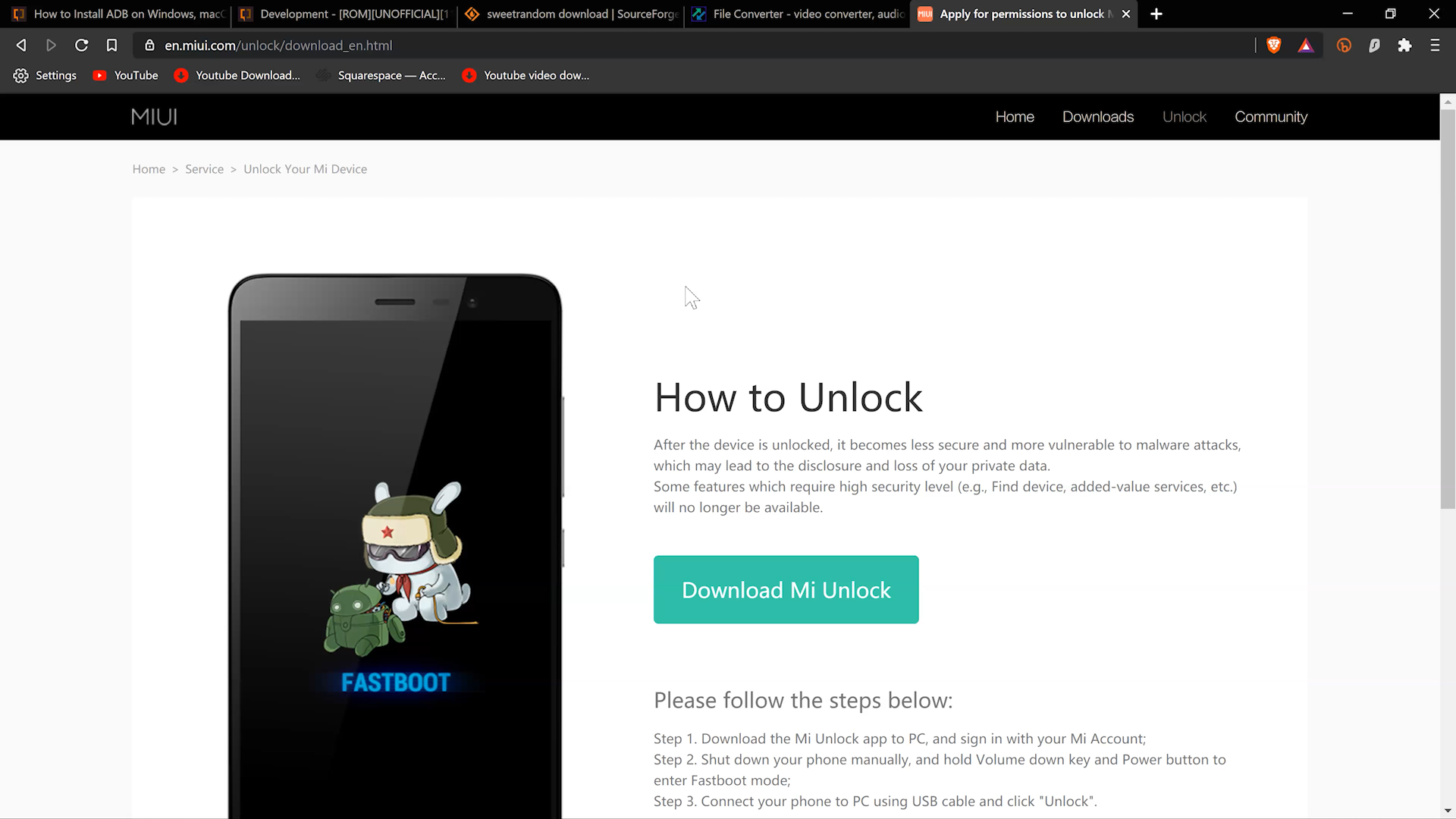
5: Download the Mi Unlock tool into your folder on your desktop

6: Unzip the Mi Unlock tool and find the application in the unzipped folder

7: Sign into the Unlock Tool with your Mi account info.

8: Put your Redmi Note 10 or Redmi Note 10 Pro Max in Fastboot Mode by holding down the power and down volume buttons.

9: Connect your phone to your computer, find the refresh button in the tool, select the phone, and click unlock. It will fail to unlock and say that you have 2 weeks to wait until you can unlock the Redmi Note 10 Pro or Redmi Note 10 Pro Max

10: Wait 2 Weeks
11: Repeat the same steps as above and the Unlock Tool will allow you to Unlock the bootloader of your Redmi Note 10 Pro or Redmi Note 10 Pro Max
12: Now that your Redmi Note 10 Pro Bootloader is unlocked you need to prepare to flash the TWRP Recovery to your Redmi Note 10 Pro Or Redmi Note 10 Pro Max. In Order to flash the Recovery and the Rom to your Redmi Note 10 or Redmi Note 10 Pro Max download these files so you can use ADB Commands
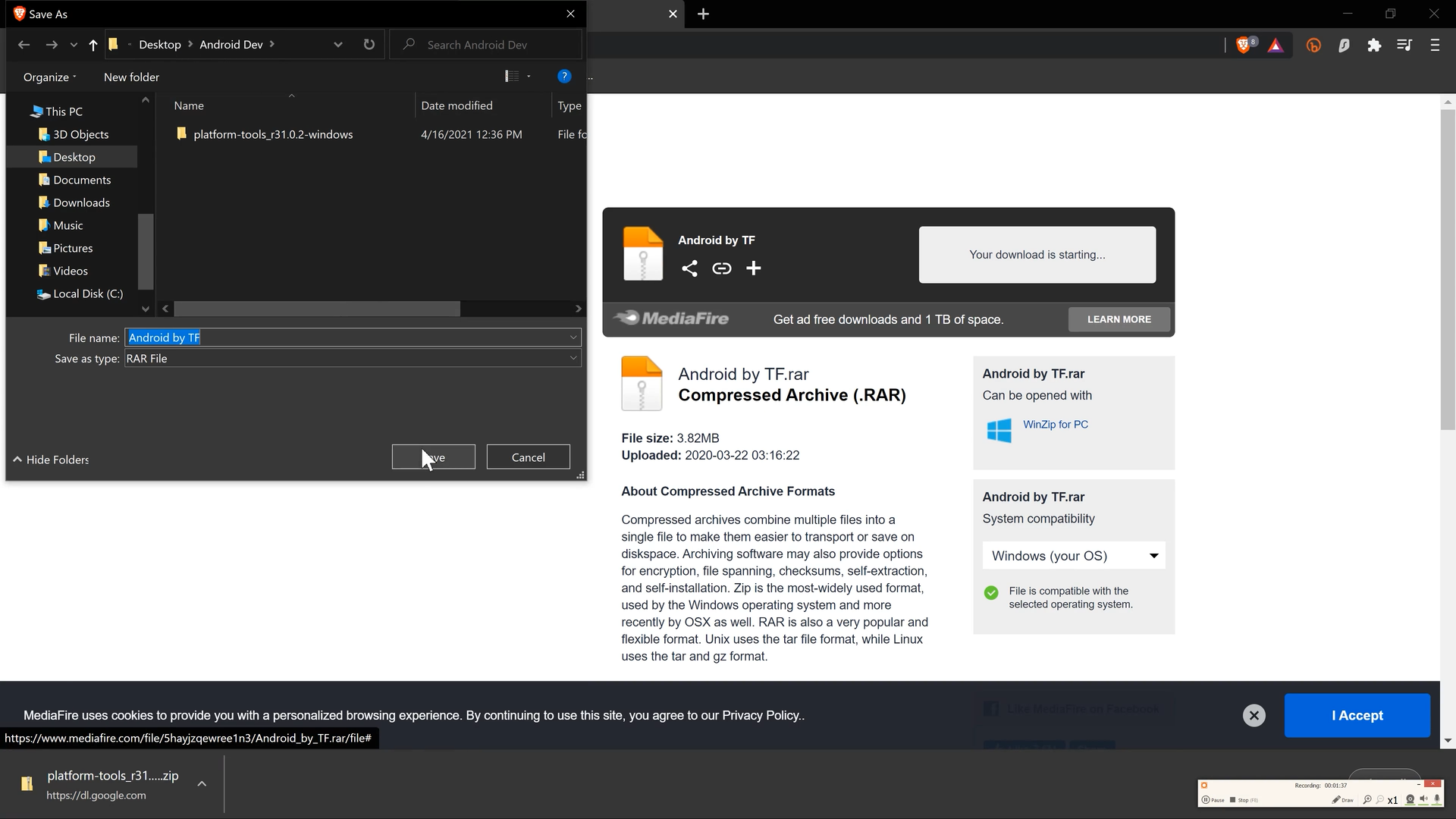
13: Download the files into your newly created Android Dev Folder on your Desktop. Open the folder and copy the “android” inside of the “Android by TF” Folder
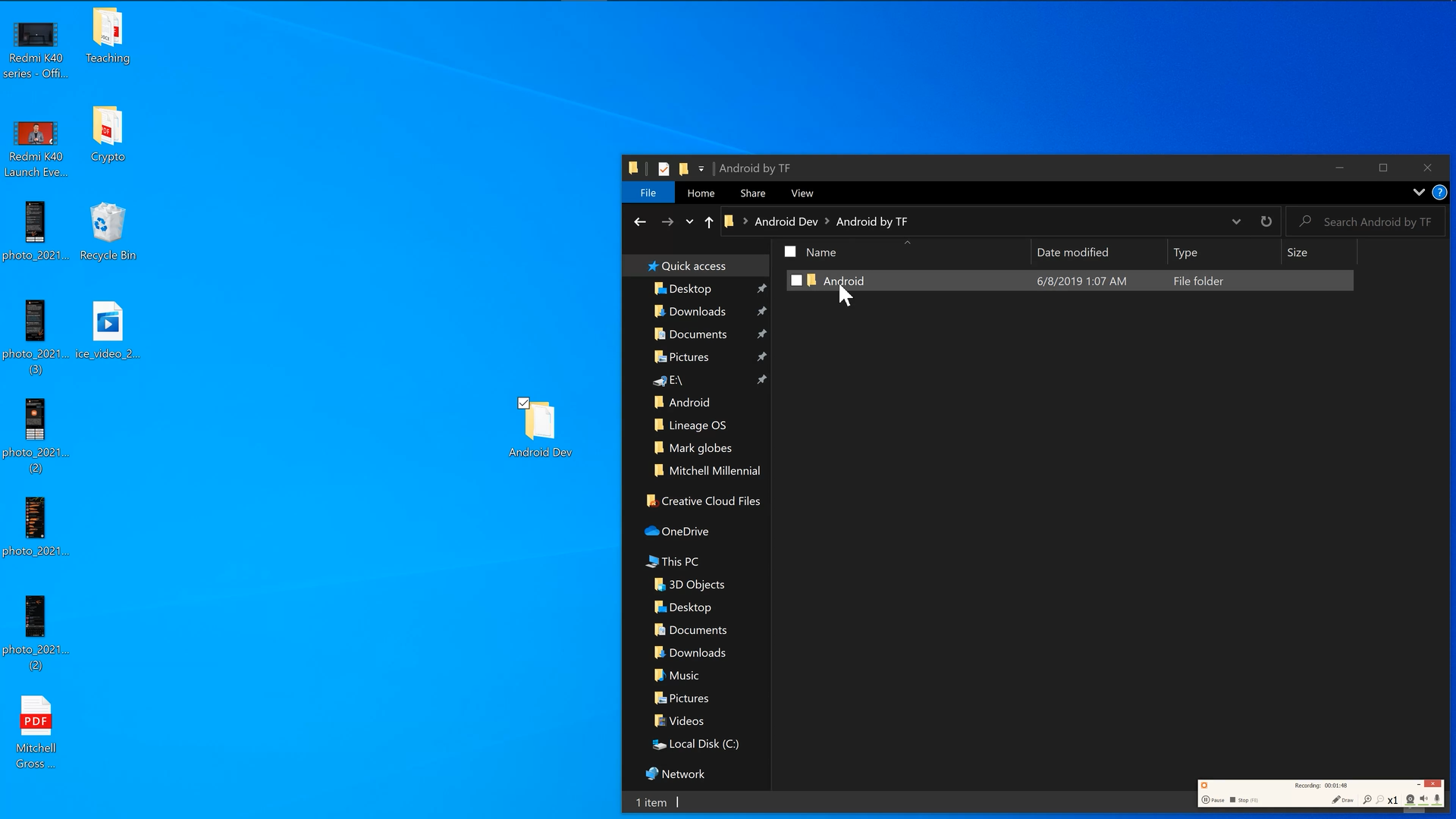
14: Navigate to C> Program files(x86) Find the “android folder” and delete it. Paste the android folder you copied from the “android by tf” folder

15: Navigate to Control Panel> System> Advanced System Settings

16: Environmental variables and find the “paths” section. Highlight it and click edit.

17: Copy the location from the “android” folder in Program Files(X86)

18: In the “Edit environmental variables” window find the “NEW” button and paste the address you just copied.

19: Download TWRP Recovery HERE and download PIXEL EXP ROM

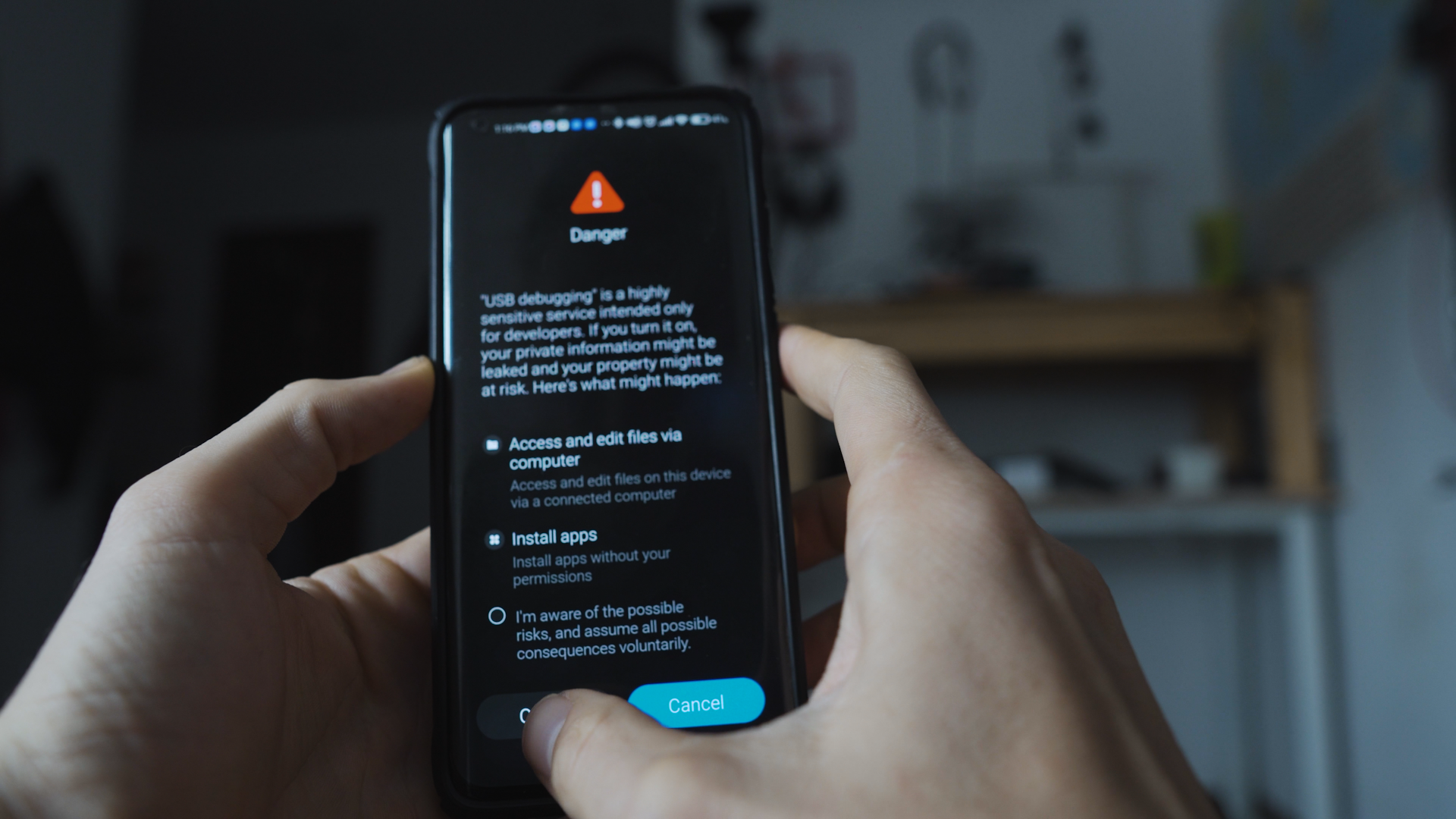
20: Go to your recently wiped phone and go through the steps needed to set the device up and go to “Developer options” (instructions on how to get to developer options are listed above). In Developer options enable USB Debugging on your Redmi Note 10 Pro and Redmi Note 10 Pro Max.
21; Navigate to your “Android Dev” folder on your desktop where you have downloaded the Pixel Experience Rom and TWRP Recovery for the Redmi Note 10 Pro and Redmi Note 10 Pro Max. Hold Down the “Shift” key and right click> Open Powershell window here

22: Make sure your Redmi Note 10 Pro Or Redmi Note 10 Pro Max is connected to your computer with USB Debugging enabled. From there type in, ADB devices and hit “enter” your device ID will register in powershell. Next type “ADB reboot fastboot” and hit enter. From here your Redmi Note10 Pro or Redmi Note 10 Pro Max will enter Fastboot Mode.

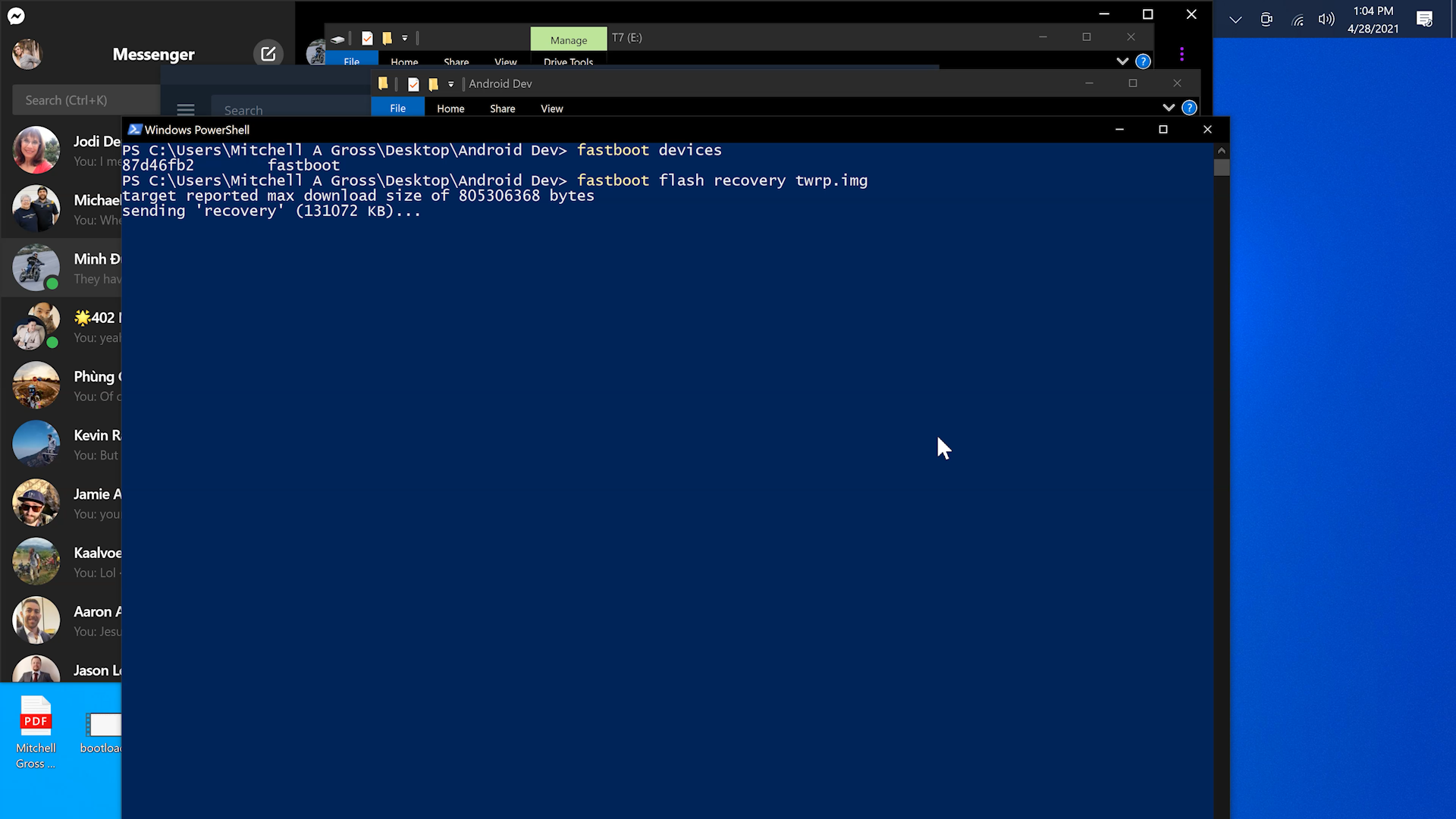
23: Type in “Fastboot flash recovery twrp.img IMPORTANT: If your recovery is named something else you will need to rename it TWRP in order for this command to work.
24: Restart the Redmi Note 10 Pro or Redmi Note 10 Pro Max by holding down the power and the volume up key and that will boot your Redmi Note 10 Pro into the TWRP recovery. IF you have recently reset your de vice no password will be needed. In my case is updating TWRP to a newer version and my SCREEN UNLOCK PASSWORD WORKED FOR DECRYPTION
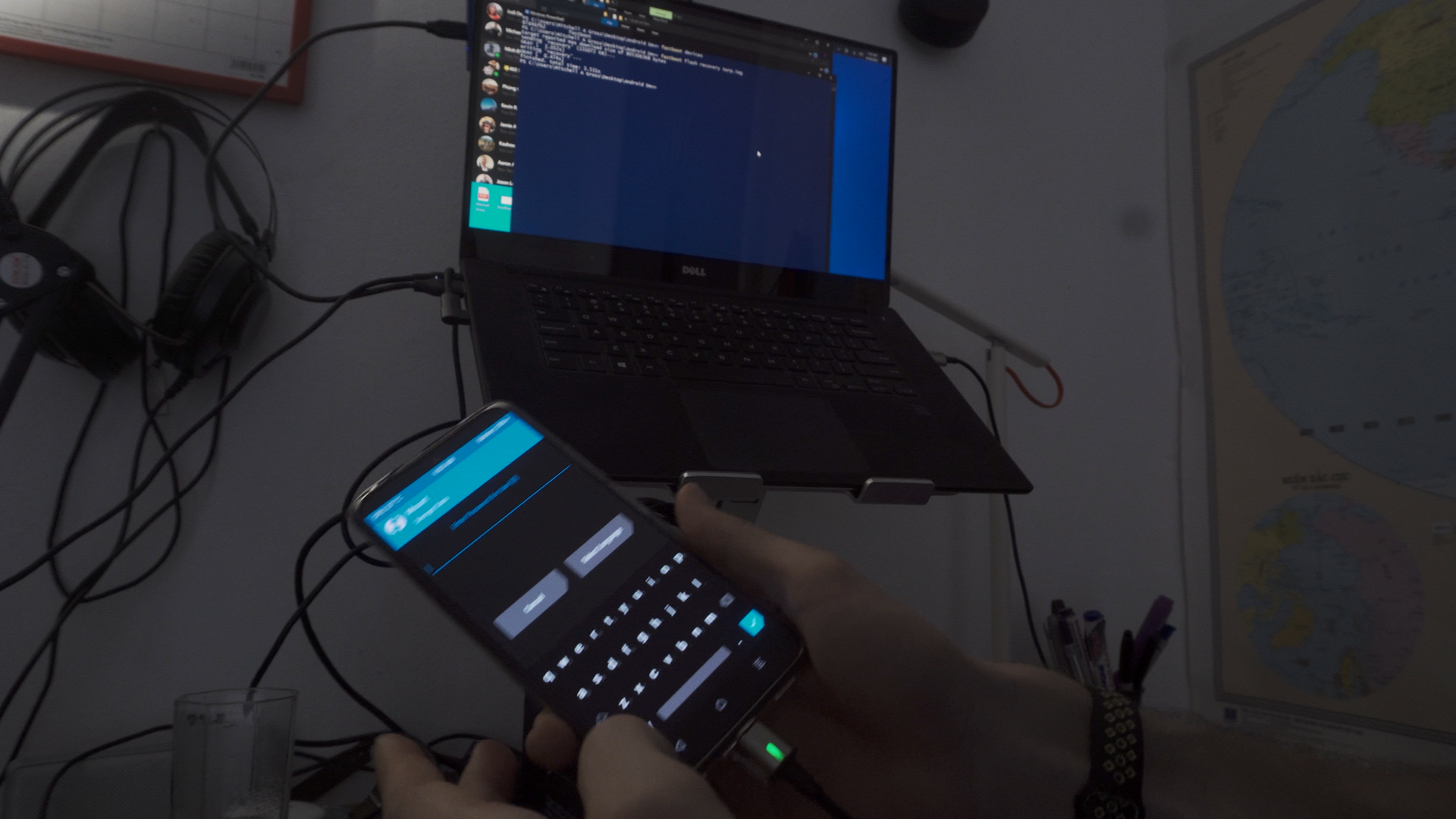

25: Copy and Paste The Pixel Experience Rom on to your device internal storage. I chose to paste it into the TWRP folder of my device for ease of finding the rom file to flash

26: Locate the Pixel Experience Rom on your device and choose “flash zip file”. Wait for it to finish and restart your device. If your Redmi Note 10 Pro or Redmi Note 10 Pro Max doesn’t boot than turn it off and let it try to reboot. It might take 10 minutes to finish.
Redmi Note 10 Pro // Redmi Note 10 Pro Max GCAM VS STOCK
/
MGC Gccam

Stock

Ultra CVM V8

MGC Gcam

sTOCK

Ultra CVM V8

MGC Gcam

STOCK

Ultra CVM v8

MGC Gcam

Stock

Ultra CVM V8

MGC Gcam

Stock

ULTRA CVM V8

MGC Gcam

Stock
Download the newest version of GCAM HERE
Download The XML File for the Redmi Note 10 Pro Here
How To Install Lineage OS On Your Redmi Note 10 Pro Or Redmi Note 10 Pro Max
/Step 1: Navigate to Settings> My device>All Specs> Miui version, tap on MIUI Version until you have unlocked developer settings
2: In Developer Options find OEM Unlocking and enter your MIUI Account Information
3: On your desktop create a new folder, I named my folder “Android Dev”
5: Download the Mi Unlock tool into your folder on your desktop
6: Unzip the Mi Unlock tool and find the application in the unzipped folder
7: Sign into the Unlock Tool with your Mi account info.
8: Put your Redmi Note 10 or Redmi Note 10 Pro Max in Fastboot Mode by holding down the power and down volume buttons.
9: Connect your phone to your computer, find the refresh button in the tool, select the phone, and click unlock. It will fail to unlock and say that you have 2 weeks to wait until you can unlock the Redmi Note 10 Pro or Redmi Note 10 Pro Max
10: Wait 2 Weeks
11: Repeat the same steps as above and the Unlock Tool will allow you to Unlock the bootloader of your Redmi Note 10 Pro or Redmi Note 10 Pro Max
12: Now that your Redmi Note 10 Pro Bootloader is unlocked you need to prepare to flash the Lineage OS Recovery to your Redmi Note 10 Pro Or Redmi Note 10 Pro Max. In Order to flash the Recovery and the Rom to your Redmi Note 10 or Redmi Note 10 Pro Max download these files so you can use ADB Commands
13: Download the files into your newly created Android Dev Folder on your Desktop. Open the folder and copy the “android” inside of the “Android by TF” Folder
14: Navigate to C> Program files(x86) Find the “android folder” and delete it. Paste the android folder you copied from the “android by tf” folder
15: Navigate to Control Panel> System> Advanced System Settings
16: Environmental variables and find the “paths” section. Highlight it and click edit.
17: Copy the location from the “android” folder in Program Files(X86)
18: In the “Edit environmental variables” window find the “NEW” button and paste the address you just copied.
19: Download the special lineage recovery into your “Android Dev” Folder. Here is the recovery link. This recovery works for bot the Redmi Note 10 Pro and the Redmi Note 10 Pro Max. Next you will want to download the Lineage OS Rom for your Redmi Note 10 Pro And Redmi Note 10 Pro Max. I used the Lineage OS Rom with GApps integrated. They can be downloaded HERE

20: Go to your recently wiped phone and go through the steps needed to set the device up and go to “Developer options” (instructions on how to get to developer options are listed above). In Developer options enable USB Debugging on your Redmi Note 10 Pro and Redmi Note 10 Pro Max.
21; Navigate to your “Android Dev” folder on your desktop where you have downloaded the Lineage OS Rom and Lineage OS Recovery for the Redmi Note 10 Pro and Redmi Note 10 Pro Max. Hold Down the “Shift” key and right click> Open Powershell window here
22: Make sure your Redmi Note 10 Pro Or Redmi Note 10 Pro Max is connected to your computer with USB Debugging enabled. From there type in, ADB devices and hit “enter” your device ID will register in powershell. Next type “ADB reboot fastboot” and hit enter. From here your Redmi Note10 Pro or Redmi Note 10 Pro Max will enter Fastboot Mode.
23: Type in “Fastboot flash recovery recovery.img IMPORTANT: If your recovery is named something else you will need to rename it recovery in order for this command to work.

24: Restart the Redmi Note 10 Pro or Redmi Note 10 Pro Max by holding down the power and the volume up key and that will boot your Redmi Note 10 Pro into the Lineage OS recovery.

25: Name the Lineage OS Rom for your Redmi Note 10 Pro or Redmi Note 10 Pro Max to something easy to remember. I renamed it to “lineage”

26: Now on your Redmi Note 10 Pro and Redmi Note 10 Pro Max navigate in the recovery to “Apply From ADB”

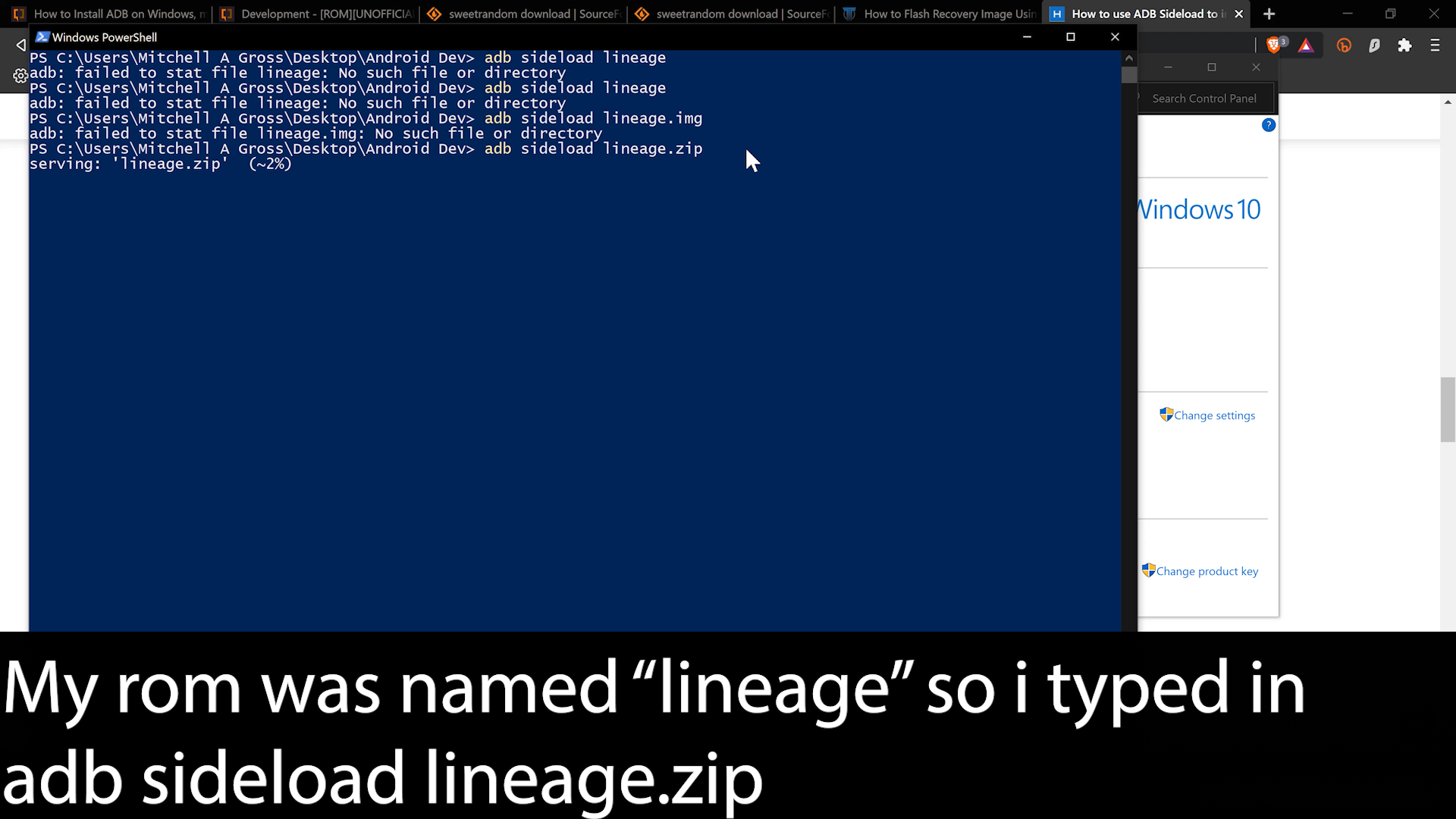
27: Type into Powershell “adb sideload lineage.zip” you can replace “lineage.zip” with whatever the name of your rom is.
28: Restart your device and a Redmi Note 10 Pro or Redmi Note 10 Pro Max with Lineage OS!
How To Find And Install GCam On Poco F2, GCam on Poco F3, And Gcam On Xiaomi Mi 10T Pro
/I often get tons of questions about where to find GCam or which version of GCam people should use to get the best performance out of their ceremony device. I have been using the GCam bot on Telegram for over 2 years. It's how I got GCam on my Poco f1, how I got GCam on my Poco F2 and Xiaomi Mi 10. It goes without saying GCam is great and the GCam bot on Telegram makes it easy to get the best fit for your phone. I've never thought to make a video about how I find the newest version of GCam or what is usually considered one of the most stable versions of GCam for my XiaoMi device.
Here Is How to use the GCam Finder for your Xiaomi Mi 10T Pro, Poco F2, Poco F3, Poco X3 Pro and Redmi Note 10 Pro

First you will need to have a Telegram. The GCam finder works through Telegram so before you can access it you'll need to install Telegram. Here is a link of where to install it.
The next step before you can access the GCam is to create an account.
Once you create an account you need to search for GCam bot


Click start
Navigate to GCam downloads
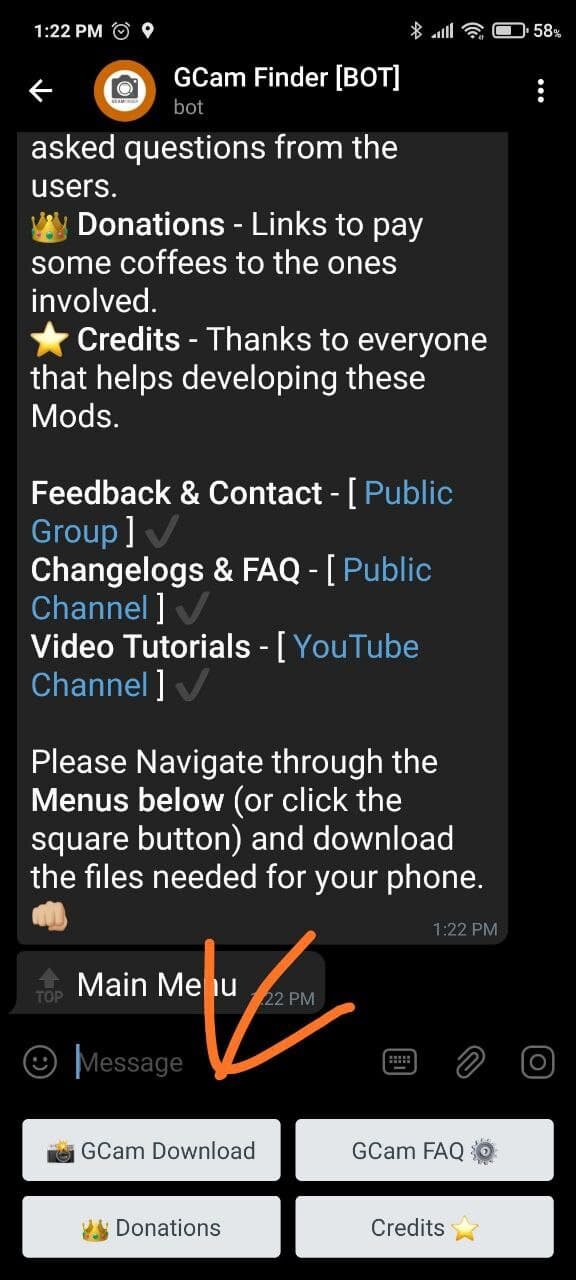
Search for your device manufacturer, in this case we are looking for GCam for the XiaoMiMi 10t pro

Navigate to device model
Download the GCam apk for theMi 10t pro

Download and install the apk
Download the xml file

Move the xml file to GCam and within GCam create a new folder called either configs7 or configs8

Either double tap the black area around the shutter button and choose to load your xml file or go into settings within GCam and manually add the xml file.

After this you can use GCam on ANY Xiaomi, Redmi, Poco Device.
The Poco X3 Pro Is The Wrong Phone For Me, And Probably You
/
The Poco X3 Pro launched and the Poco X3 Pro is one of the more interesting phones from Xiaomi. The Poco X3 Pro is a frankenstein phone made up of parts from the Poco X3 and the old Xiaomi Redmi k20 pro mi 9t pro. The first reason I'm not interested in the Poco X3 Pro is the screen. The headline feature for the Poco X3 Pro's screen is the refresh rate. The Poco X3 Pro features a 120hz LCD display. But the Poco X3 Pro has the same display as the Poco X3 which tops out at 450 nits of brightness.

The second reason I['m not buying the Poco X3 Pro is the cameras. The cameras of the Poco X3 Pro are worse than the cameras on the regular Poco X3. Obviously a cost cutting move from Xiaomi to bring the price of the Poco X3 Pro down but still, I don't want to buy a brand new phone with a 2 year old camera. The Poco X3 Pro packs the same sony imx 582 sensor found on the Redmi k20 pro and a mediocre 8mp ultrawide camera. Although the Poco X3 Pro might be an adequate camera for you, I want my new phone to have no camera hardware.
The third reason I'm not interested in the Poco X3 Pro is the construction. The Poco X3 Pro features glass on the front and back but the Poco X3 uses a plastic chassis instead of metal. While this might not sound like a big deal to you upon closer inspection you might be surprised. Although we have seen huge advancements in smartphone durability with gorilla glass victus most of that comes from it being easier to bend and deform before shattering. The Poco X3 Pro doesn't have gorilla glass victus and combined with a plastic chassis the Poco X3 Pro isn't a device I would feel comfortable putting in my back pocket either.

The last and final reason the Poco X3 Pro isn't the phone for me is the SOC. The Poco X3 Pro utilizes the same Snapdragon 855 CPU in the Redmi K20 Pro. Now this isn't a bad thing but it's clear that at the pricepoint the Poco X3 Pro is sacrificing everything for the SOC. While I love a smooth smartphone experience in my opinion I want a better and more well rounded phone. In actuality the Poco X3 Pro sacrifices these things for the sheer computational horsepower afforded by the SOC and that means the Poco X3 Pro Isn't the device for me.